Quick Start
This page shows how to install and use the Bend modifier.
Requirements
Blender 4.5+ (tested with latest).
The Bend asset installed.
Install
Follow the steps in Installation to set up the asset in your Blender Asset Library.
Add the Modifier
Select any mesh object.
Open the Modifiers tab.
Click Add Modifier → Deform → Bend.
Basic Use
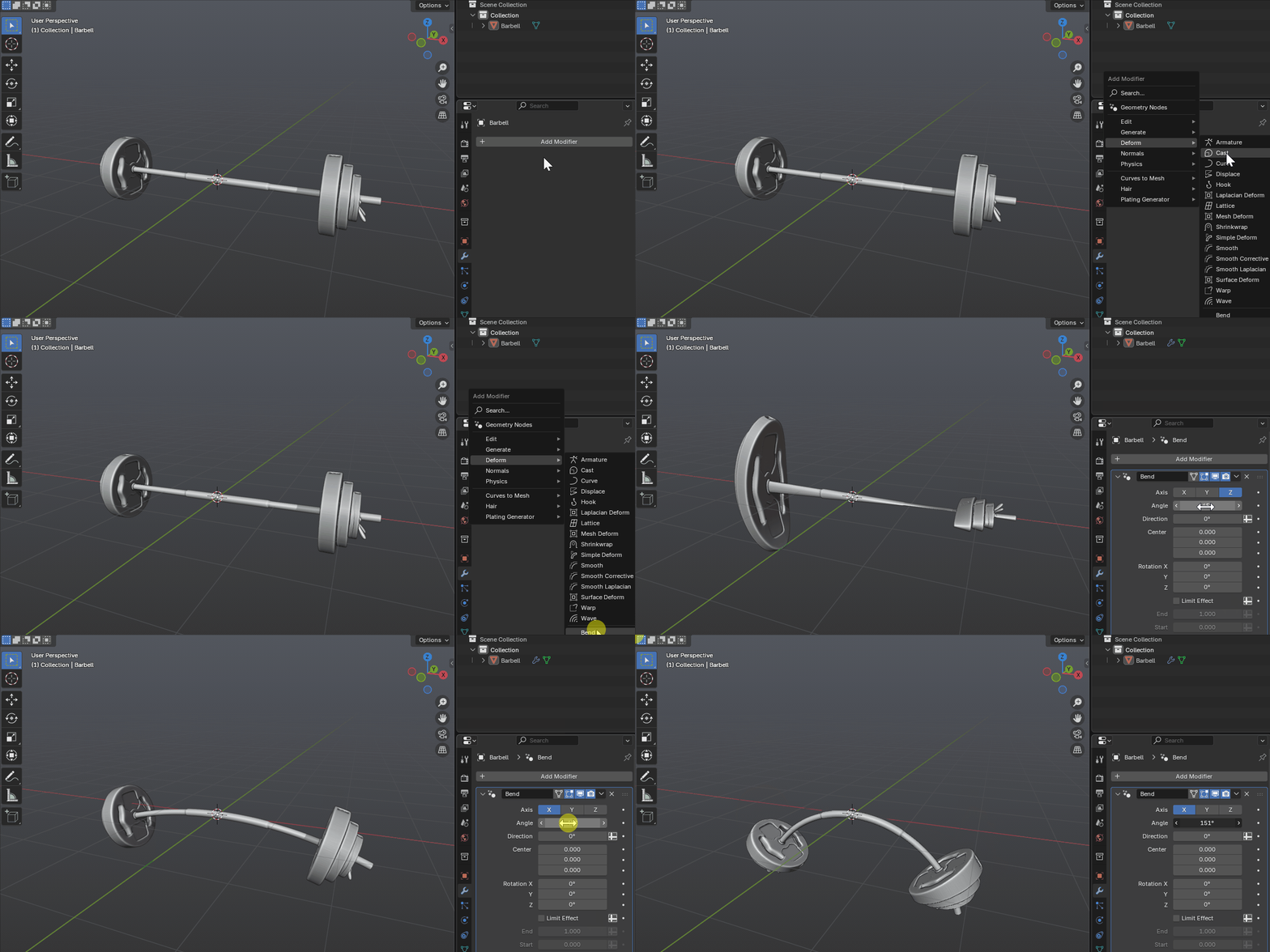
Choose Axis — Pick X, Y or Z under Axis. This is the bend axis (the hinge the bend rotates around).
Set Angle — Use Angle to define the total bend (e.g.
90°for a quarter circle).Aim the Bend — Use Direction (in degrees) to rotate the bend plane around the chosen axis.
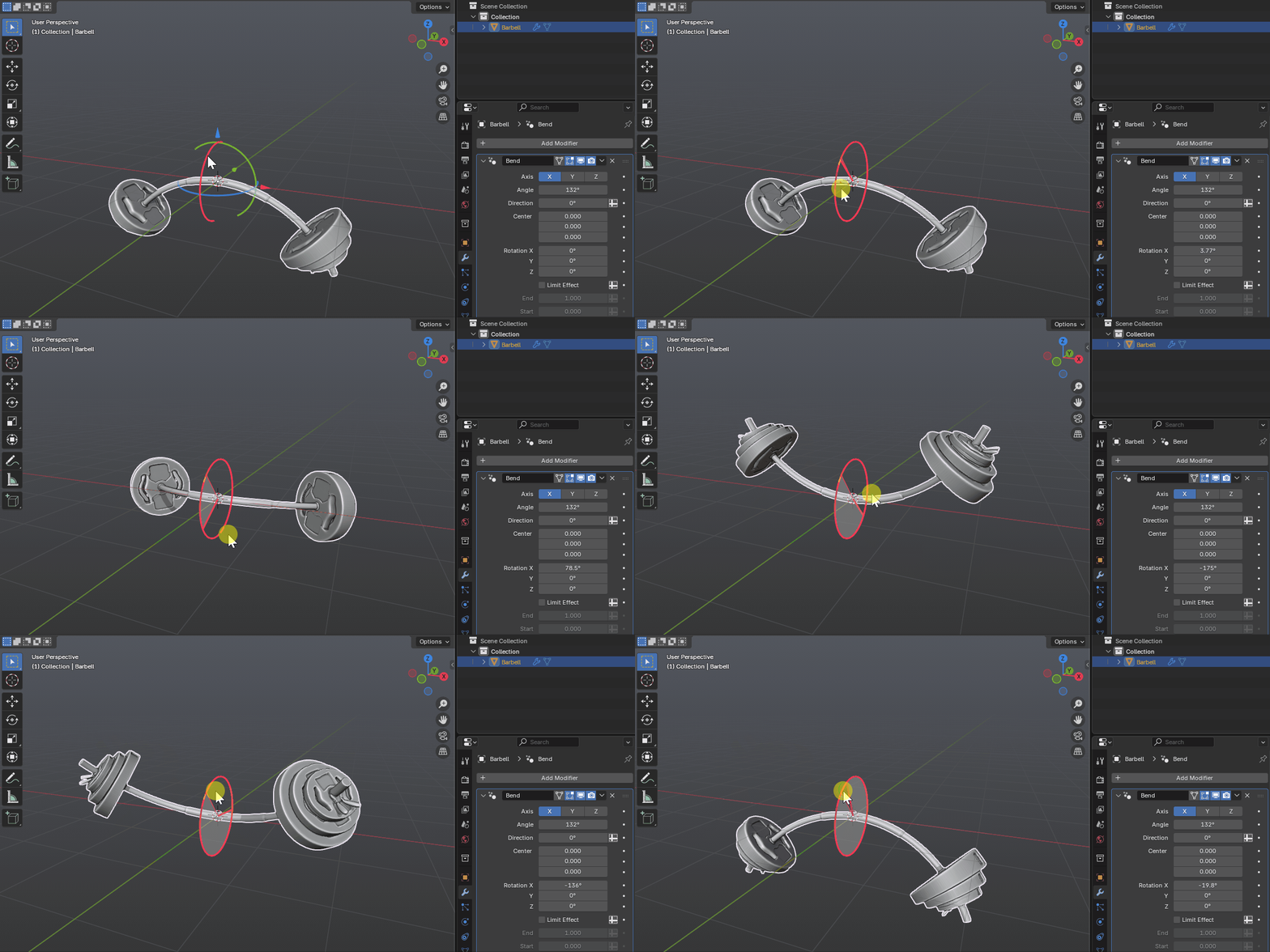
Place the Pivot — Set Center (X/Y/Z) to position the bend’s origin, or simply drag the built-in gizmo.
(Optional) Rotate the Gizmo Frame — Rotation X/Y/Z rotates the bend frame relative to the object (handy when your object space isn’t aligned to where you want the bend).
(Optional) - Limit Effect — Restricts the bend to a portion of the object along the chosen axis. When enabled, set Start and End distances to define the limit window either on the modifier panel or by dragging the gizmo handles that appear.
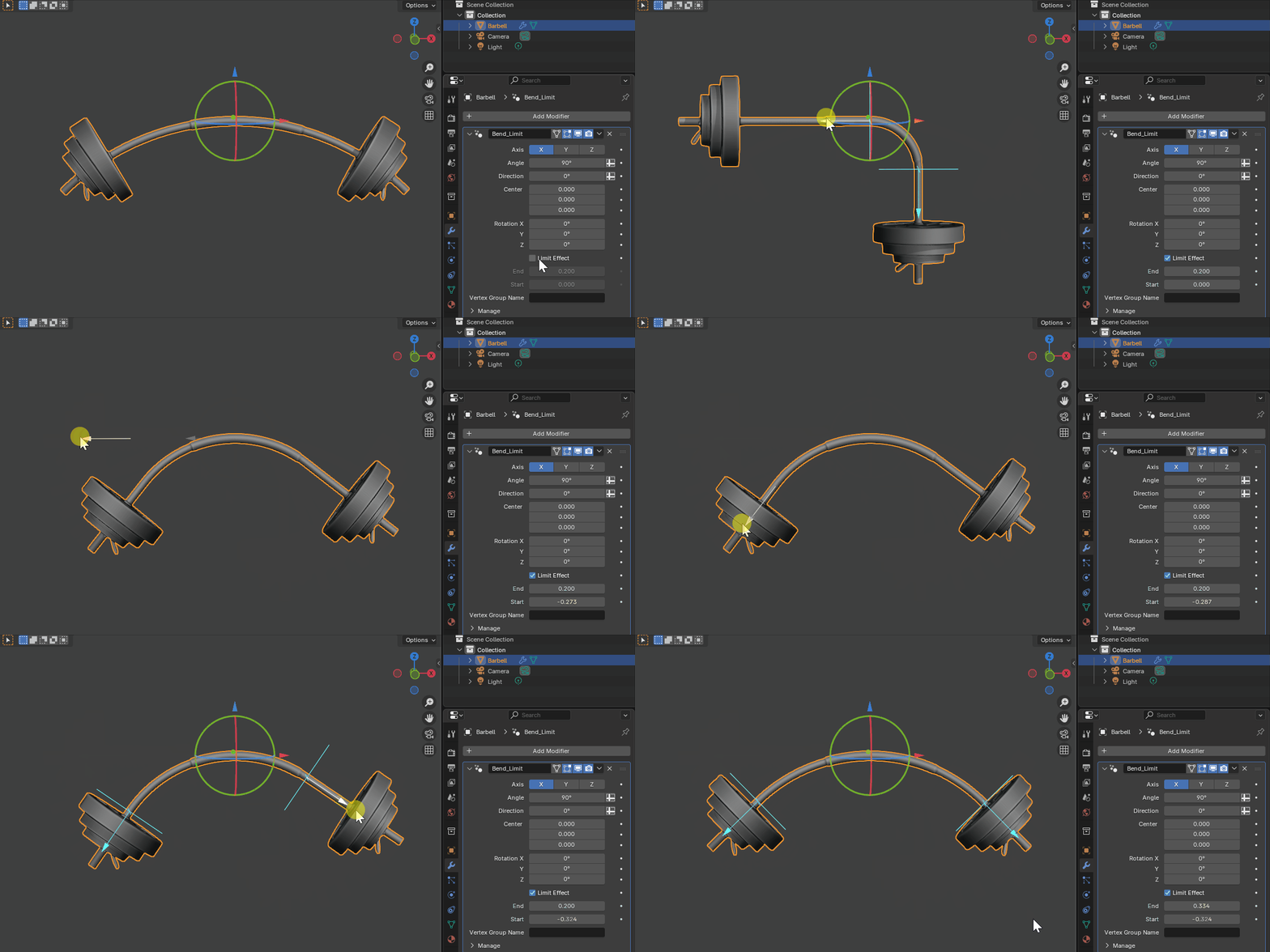
Start and End are distances (in object units) measured along the bend’s along-direction from the Center. Inside this window the mesh follows a circular arc.
Startis negative,Endmust be positive.Outside the limit, the mesh continues straight along the correct end tangents (no kink).
(Optional) Vertex Group — Enter a Vertex Group Name to weight the effect (0..1) across the mesh.
Using the Gizmo
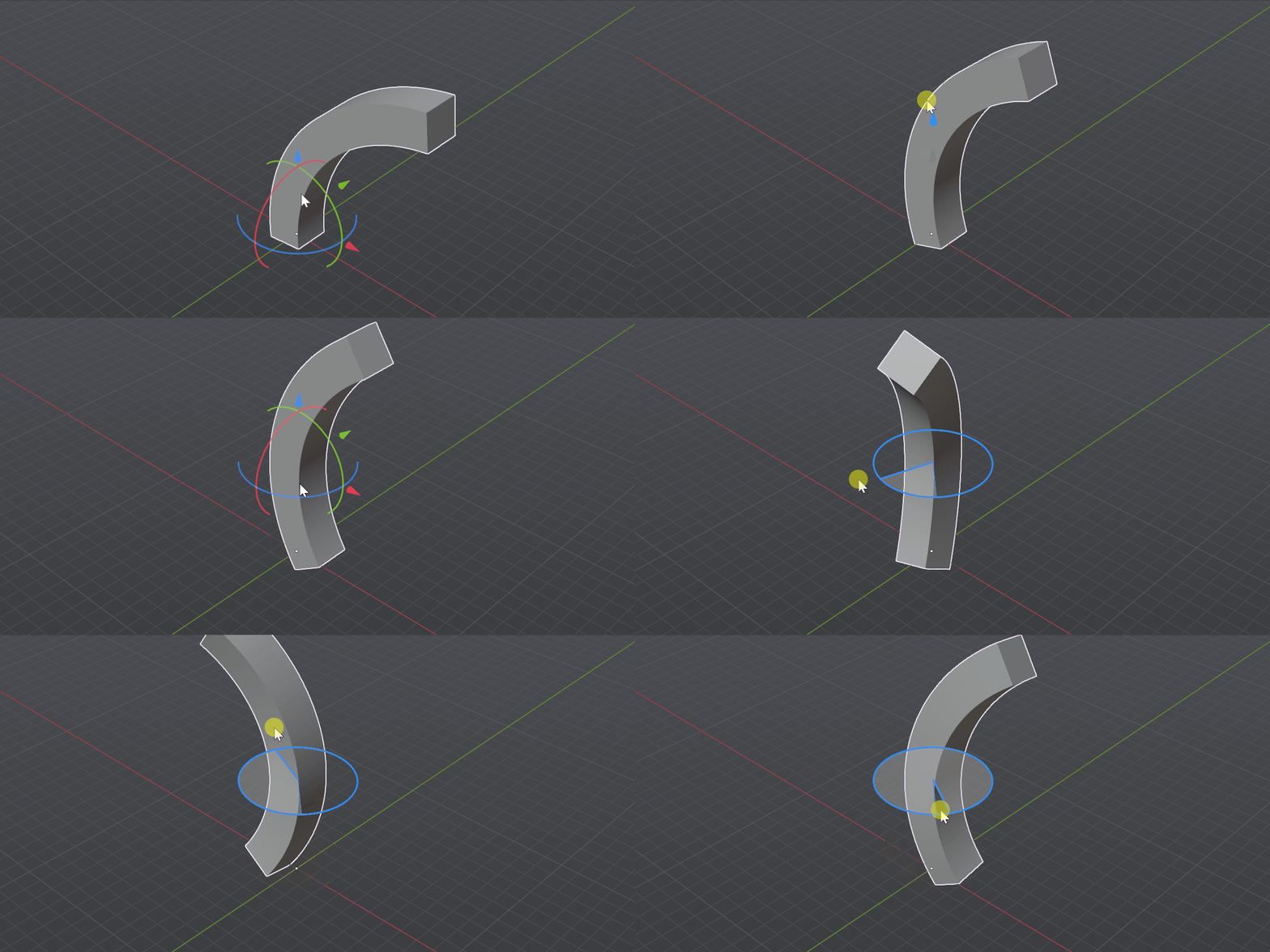
Move the gizmo to reposition Center.
Rotate the gizmo around the Axis to change Direction.
Rotate around the other axes to reorient the along-direction if needed.
Thee gizmo changes the modifier parameters directly, so you can also type values in the panel.
Parameter Reference
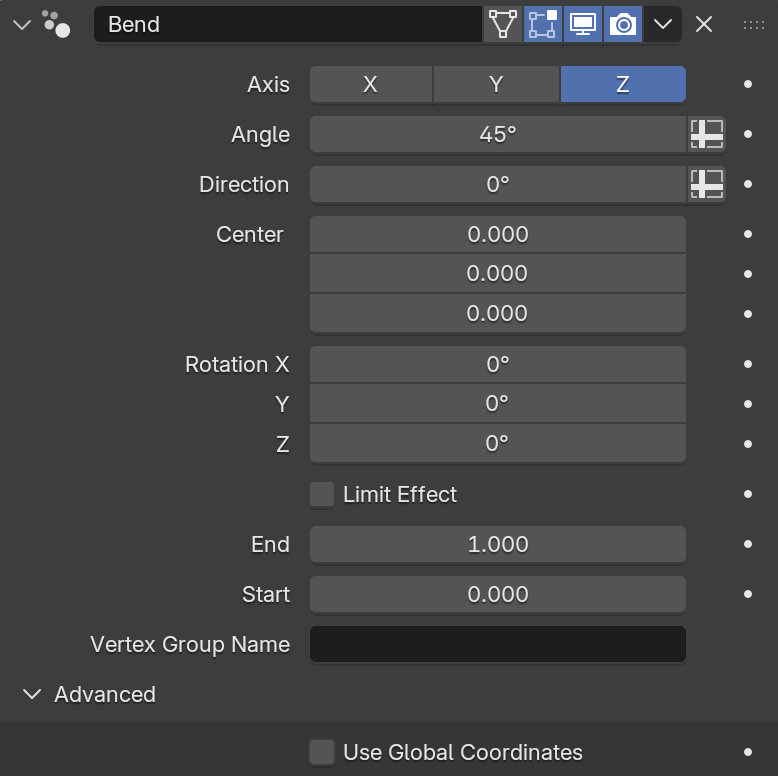
Axis (X/Y/Z)
Bend axis (the hinge). The mesh bends around this vector.
Angle
Total bend angle in degrees across the limited region (or entire mesh if not limited).
Direction
Rotates the bend plane around the chosen Axis.
Center (X, Y, Z)
World-space location of the bend’s origin (also controlled by the gizmo).
Rotation X/Y/Z
Rotates the bend frame relative to the object. Use if your object’s orientation is awkward.
Limit Effect
- When enabled, only geometry along the distance between Start and End is bent into the arc.
- Start, End
Define the limit window along the chosen axis.
Starttravels along the negative axis line,Endtravels along the positive axis line.
Vertex Group Name
Optional weight mask; vertices with weight 0 are unaffected, weight 1 receive full bending.
Advanced
Use Global Coordinates
When enabled, controls are in world coordinates. When disabled, controls are in local object coordinates.